BlendPDF guides
Short, practical guides for the things people do most with a PDF. Each one shows the real screens, in the order you will see them.
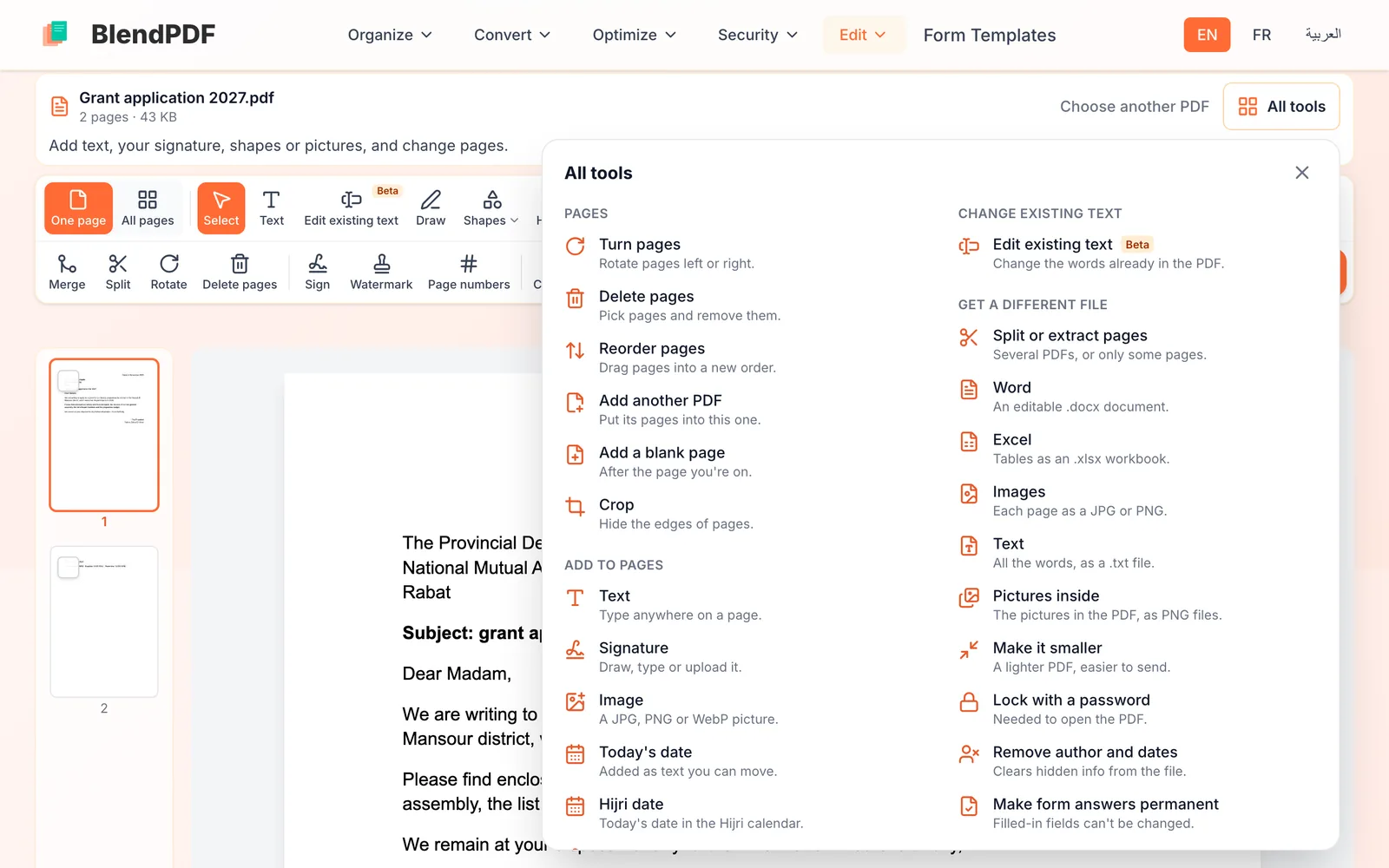
How BlendPDF works: open a PDF once, use every tool
Open your PDF once. Every tool then works on that same file: add text or a signature, move pages around, make it smaller or turn it into Word. Nothing changes in your file until you press Save.
2 min
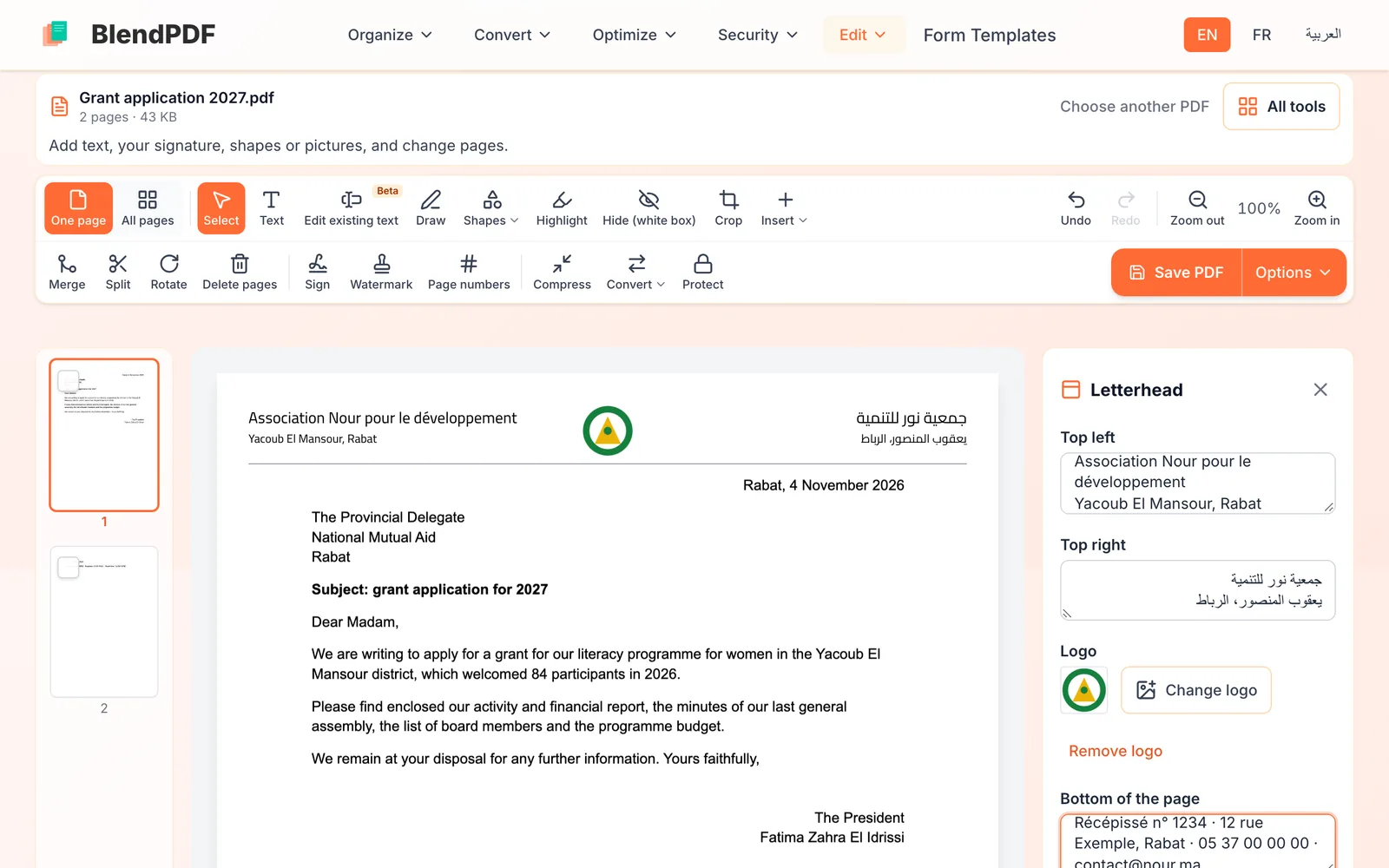
How to add a letterhead to a PDF
Open the PDF, choose Insert, then Letterhead, and fill in the top left, the top right, the logo and the bottom of the page. It shows on the page as you type. BlendPDF keeps it on your device, so next time it goes on in one click.
2 min
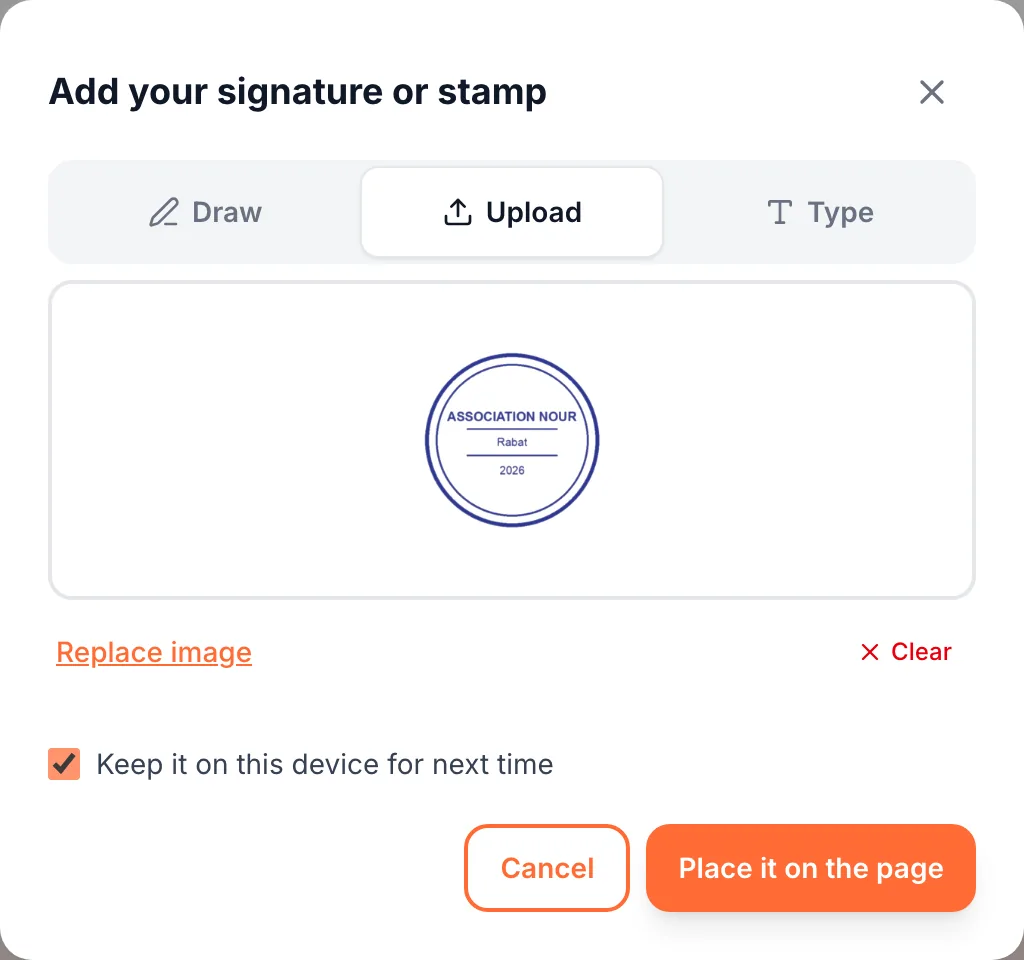
How to sign and stamp a PDF
Open the PDF, choose Insert, then Signature, and draw, type or upload your signature or stamp. A photo of a stamp loses its paper background, so it sits on the page like ink. Tick Keep it on this device for next time and it is one click away next time.
2 min
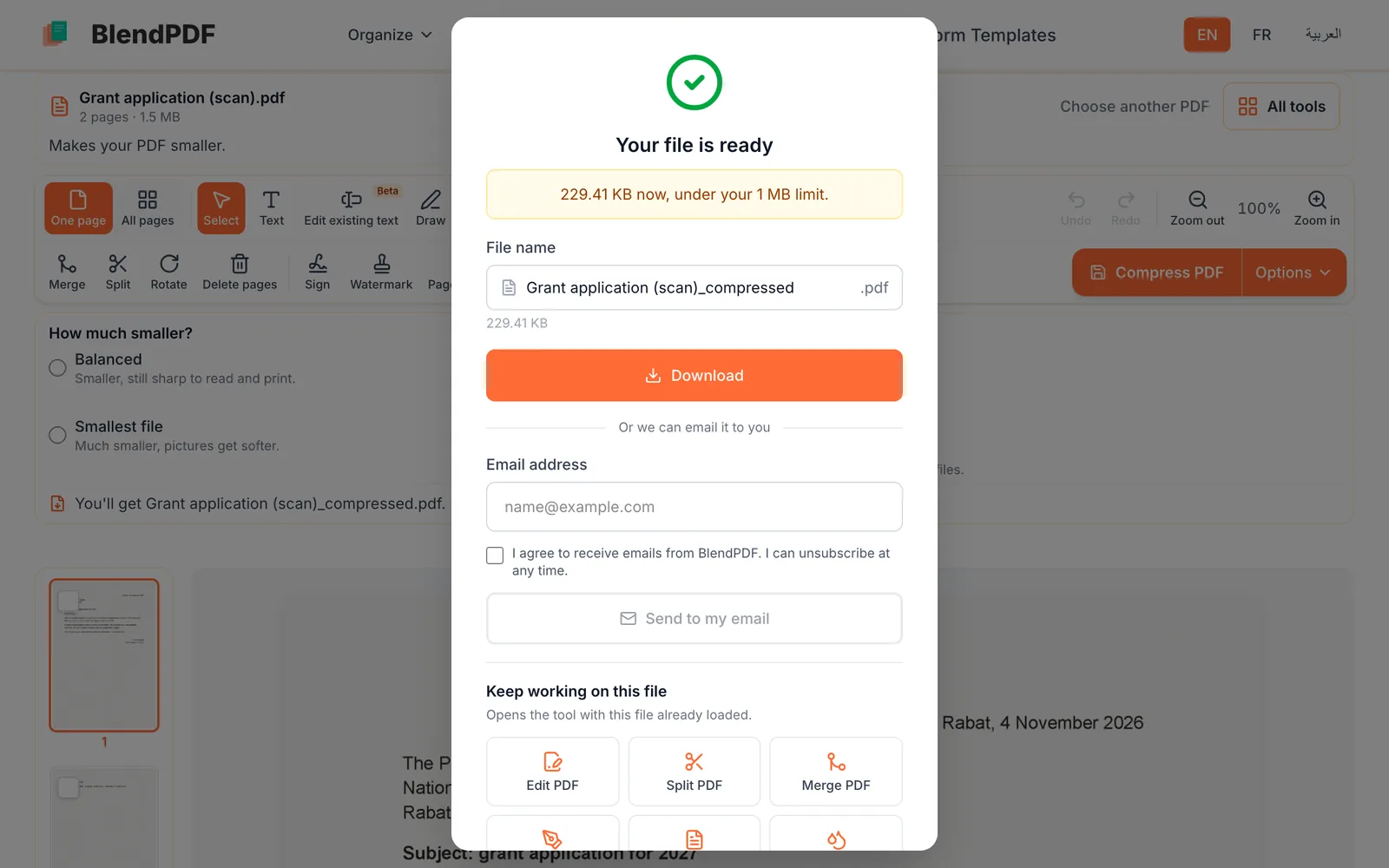
How to make a PDF smaller than 2 MB (or any size limit)
Open the PDF on Compress PDF, choose Under a size limit, type the limit the form asks for (for example 2) and click Compress PDF. BlendPDF tries several settings and keeps the best looking one that fits. If nothing fits, it says how small it could get.
1 min
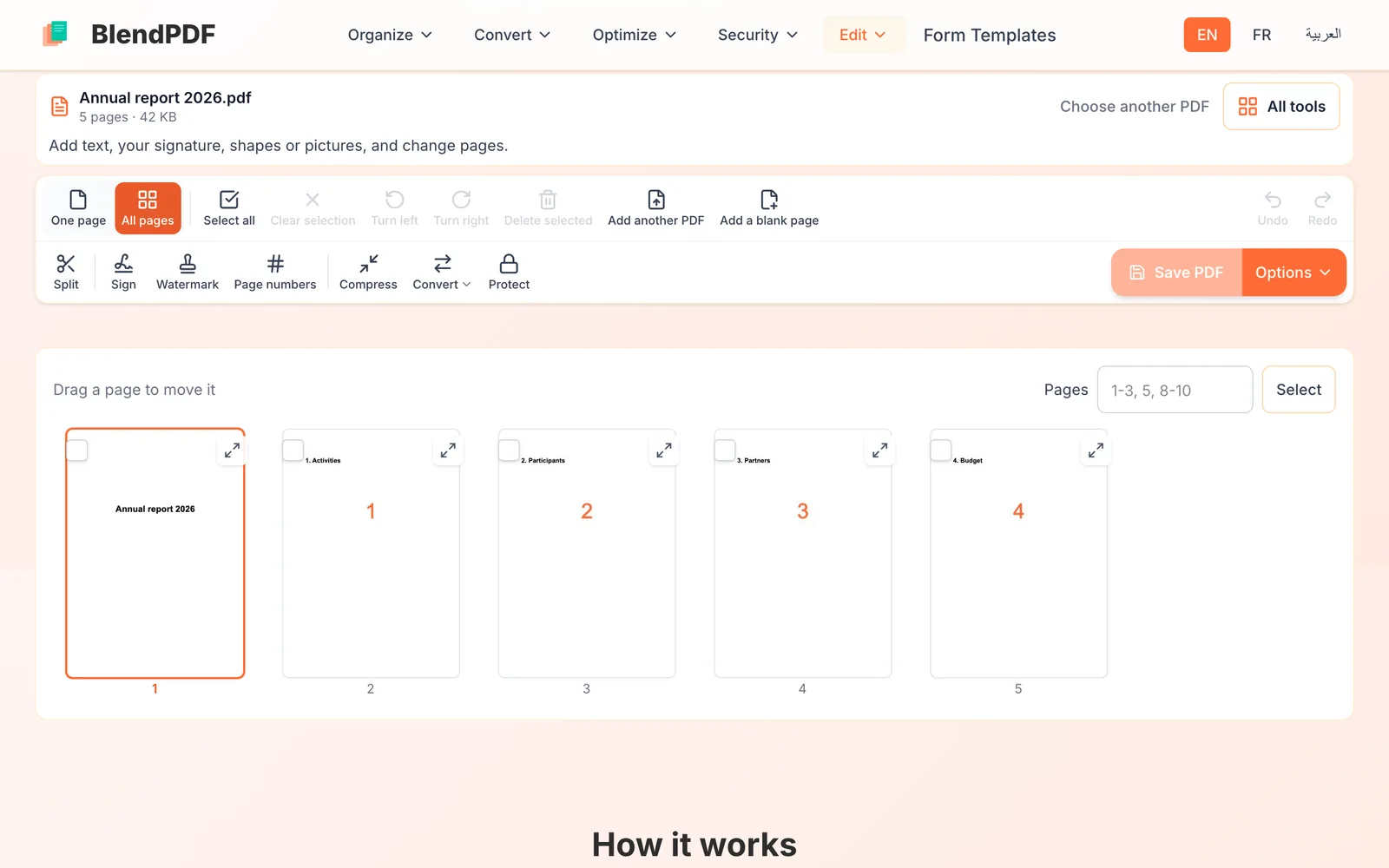
How to merge, split and reorder PDF pages
Open your PDF and click All pages to see every page: drag a page to move it, and tick pages to turn or delete them. To join files, use Merge PDF or Add another PDF. To cut one file into several, use Split and choose how.
3 min
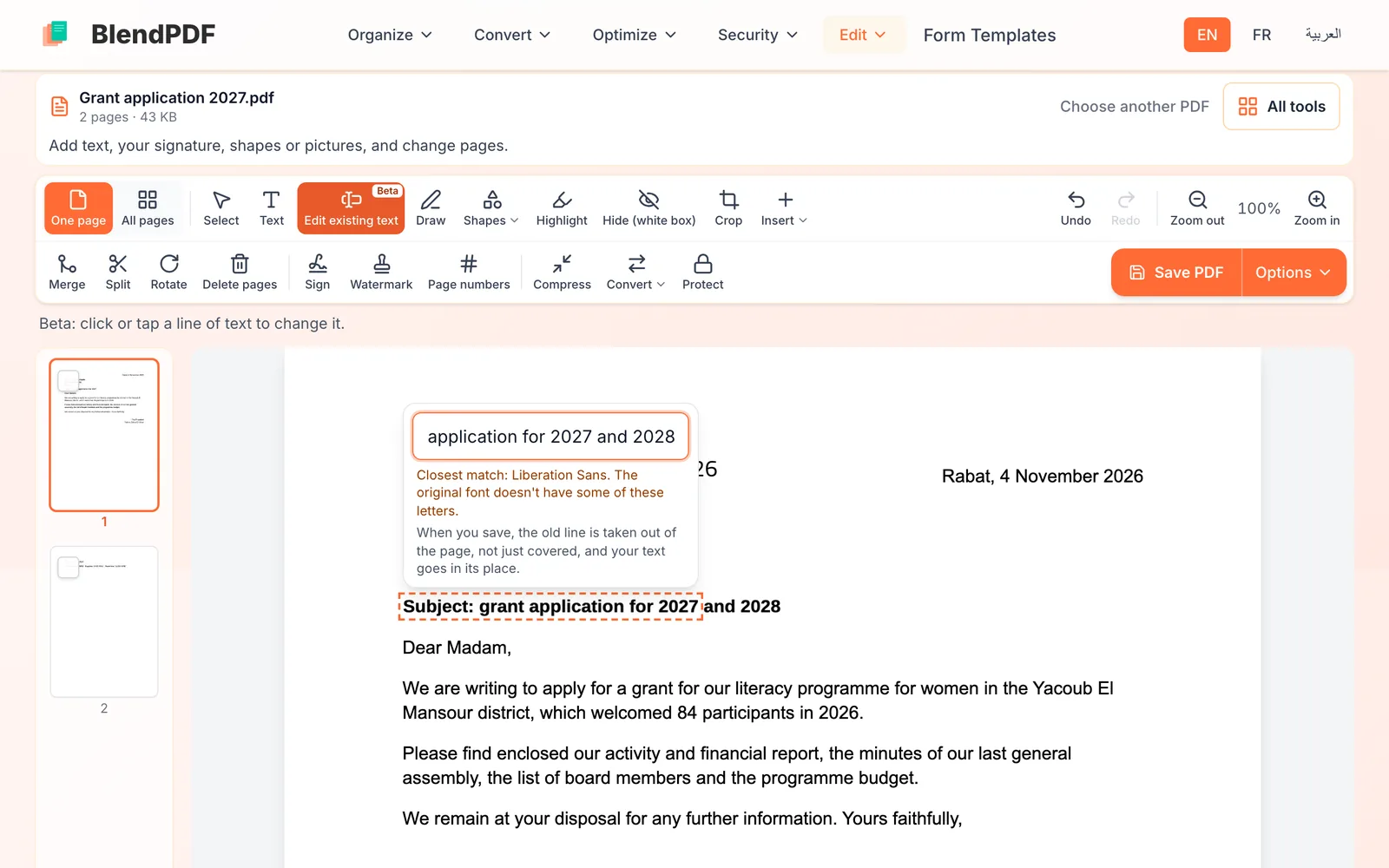
How to add or change text in a PDF
To add words, choose Text, click where they go and type. To change a line that is already in the PDF, choose Edit existing text, click the line and type the new wording: BlendPDF takes the old line out and writes the new one in the closest font it has.
2 min