How to merge, split and reorder PDF pages
3 min · Updated November 2026
Open your PDF and click All pages to see every page: drag a page to move it, and tick pages to turn or delete them. To join files, use Merge PDF or Add another PDF. To cut one file into several, use Split and choose how.
Merge PDFsSteps
See every page, then drag to reorder
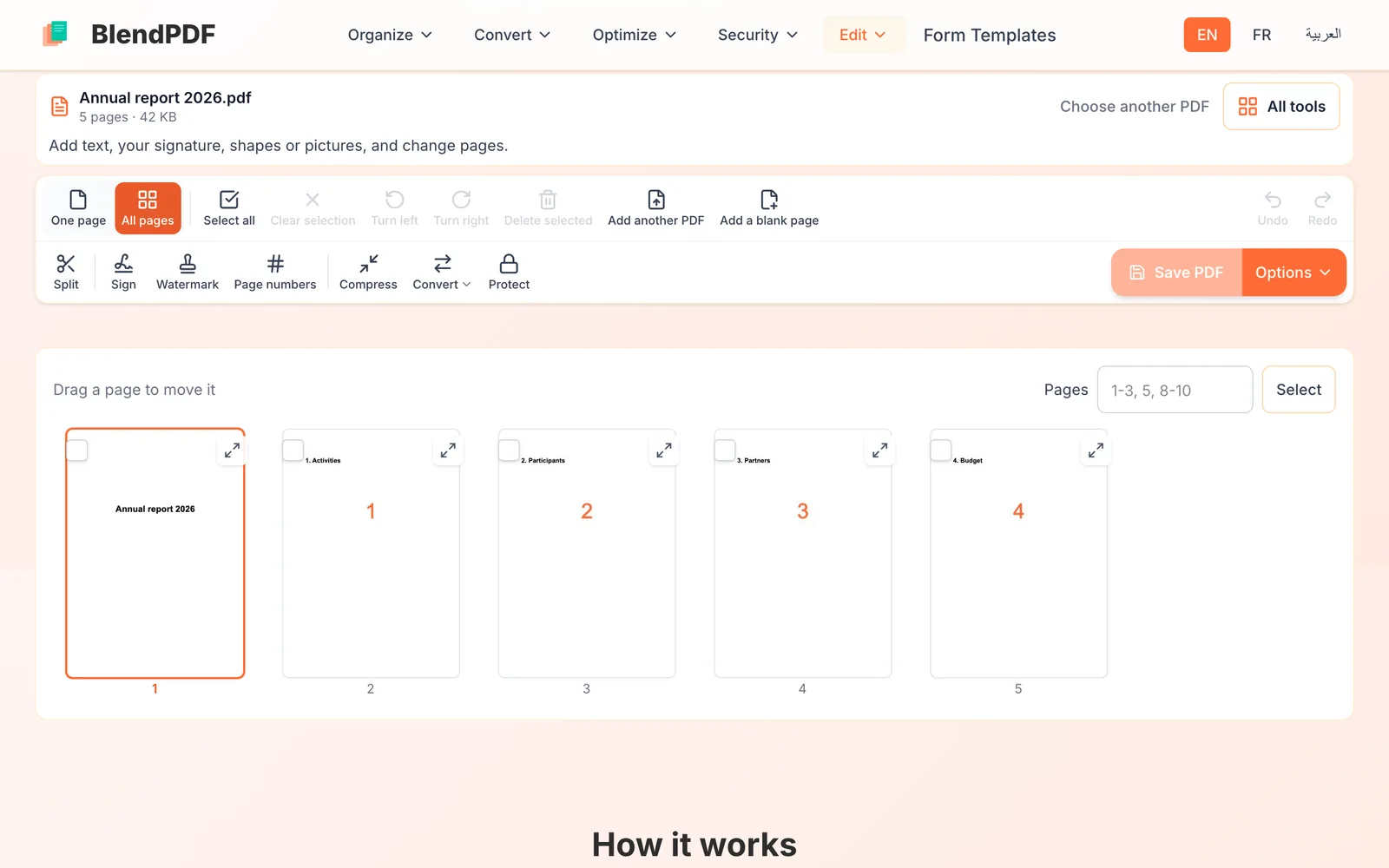
Click All pages above the page. Drag a page to move it. Tick one or more pages, then use Turn left, Turn right or Delete selected to change them all at once.
Split a PDF into several files
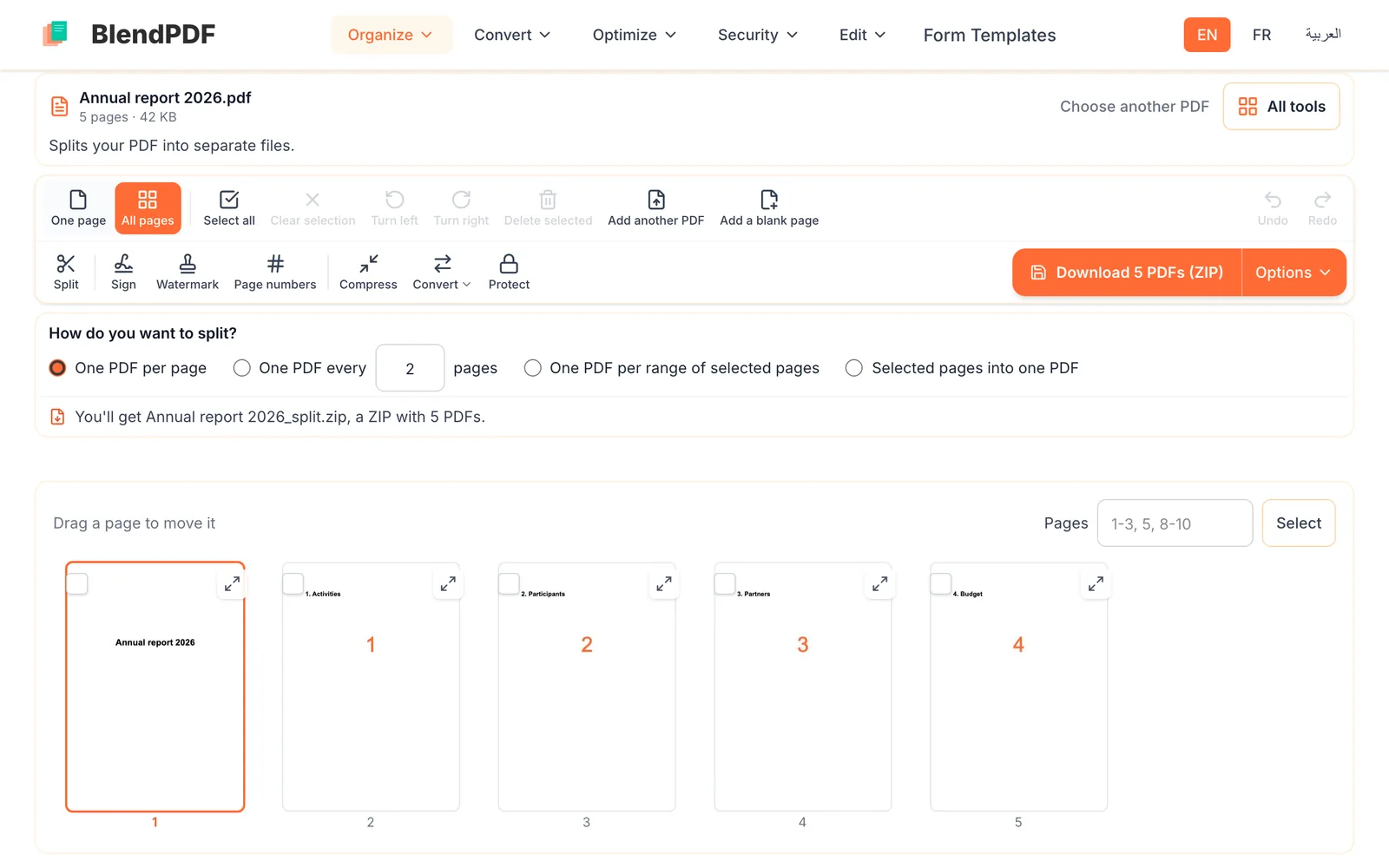
Open the PDF on Split PDF, or click Split. Choose one PDF per page, one PDF every few pages, one per range of selected pages, or the selected pages in one PDF. The line under the choices tells you exactly which files you will get.
Merge several PDFs into one
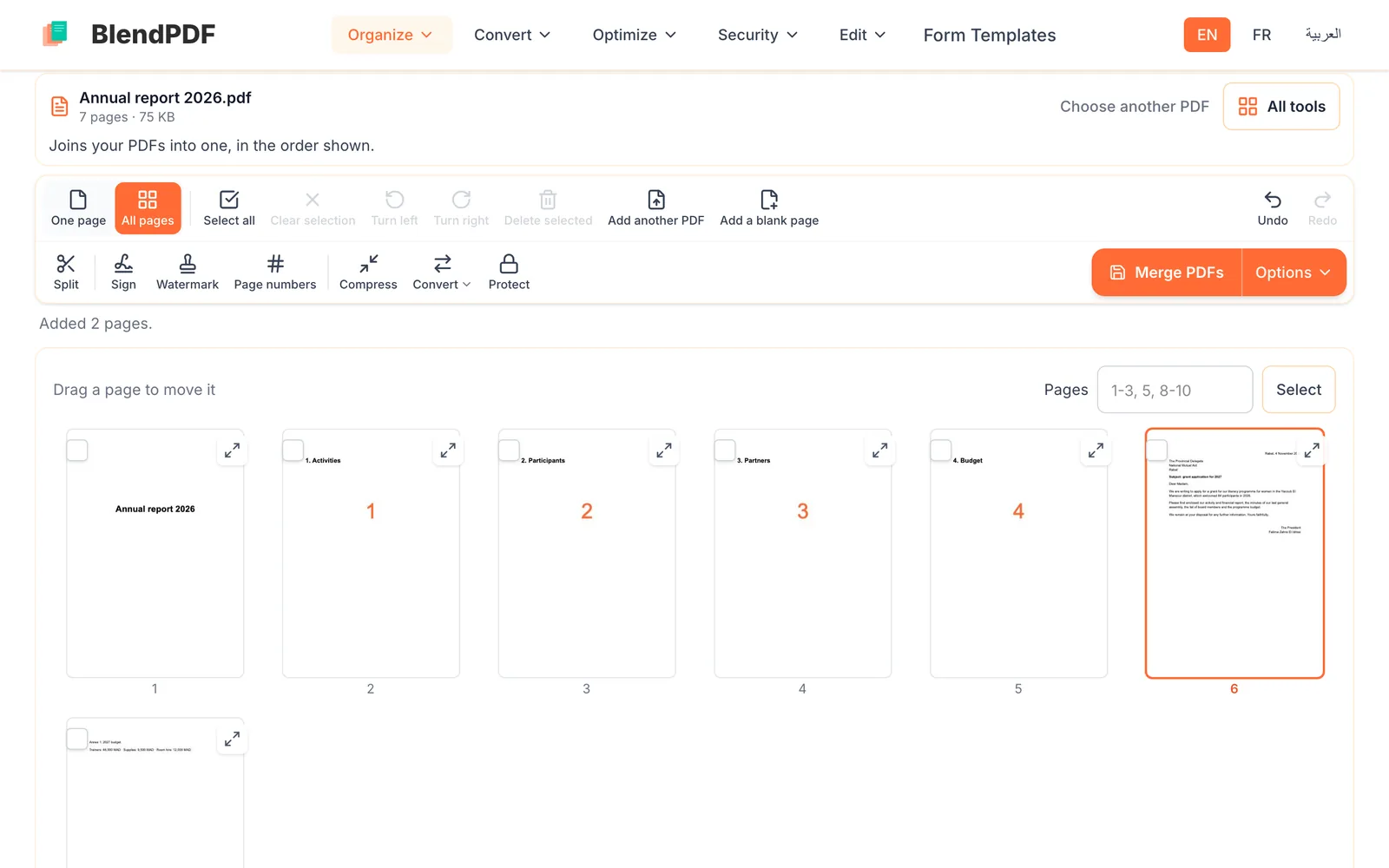
On Merge PDF, drop all your files at once, or open one and click Add another PDF for each of the others. Their pages join in a single list: drag them into the order you want, then click Merge PDFs.
Good to know
- How many files
- Up to 20 PDFs in one merge, 100 MB in total.
- Pages scanned the wrong way up
- Turn them in All pages before you save; the turn is saved in the file.
- Keep only some pages
- Tick them, open Options and choose Only the selected pages.