How BlendPDF works: open a PDF once, use every tool
2 min · Updated November 2026
Steps
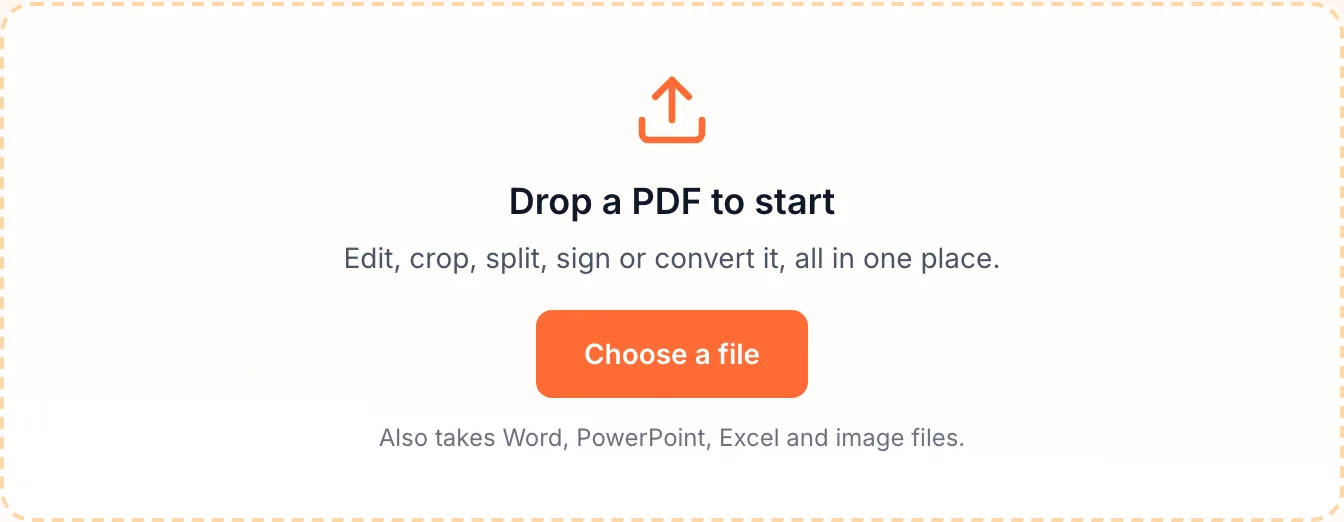
Drop your file on the home page
Drag a PDF onto Drop a PDF to start, or click anywhere in the box to pick one. Word, PowerPoint, Excel files and pictures work too: they open in the tool that turns them into a PDF.
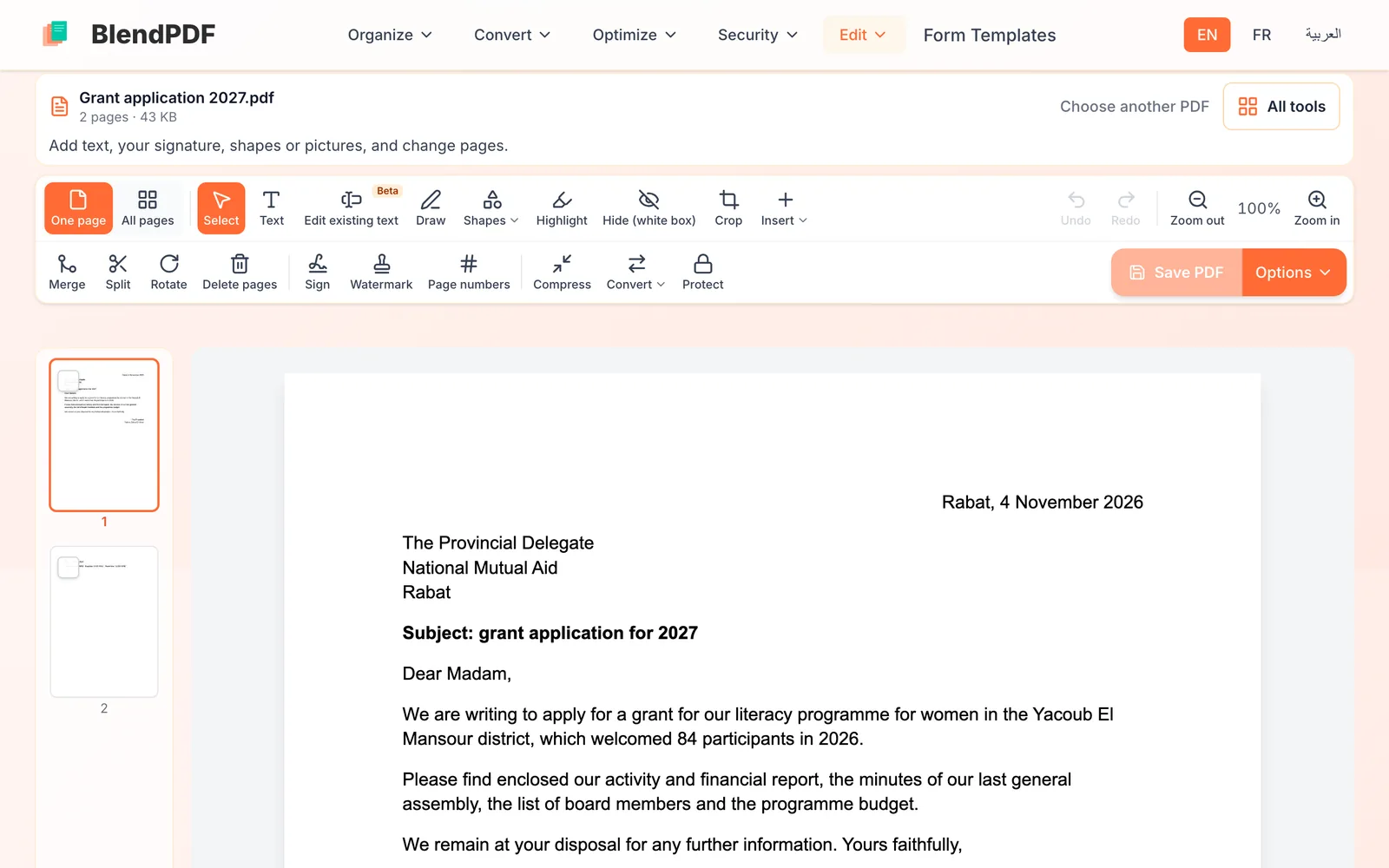
Find your way around the toolbar
The first row works on the page in front of you: Text, Edit existing text, Draw, Shapes, Highlight, Hide (white box), Crop and Insert (a picture, your signature, the date, a watermark, page numbers, a letterhead or another PDF). The second row works on the whole file: Merge, Split, Rotate, Delete pages, Sign, Watermark, Page numbers, Compress, Convert and Protect.
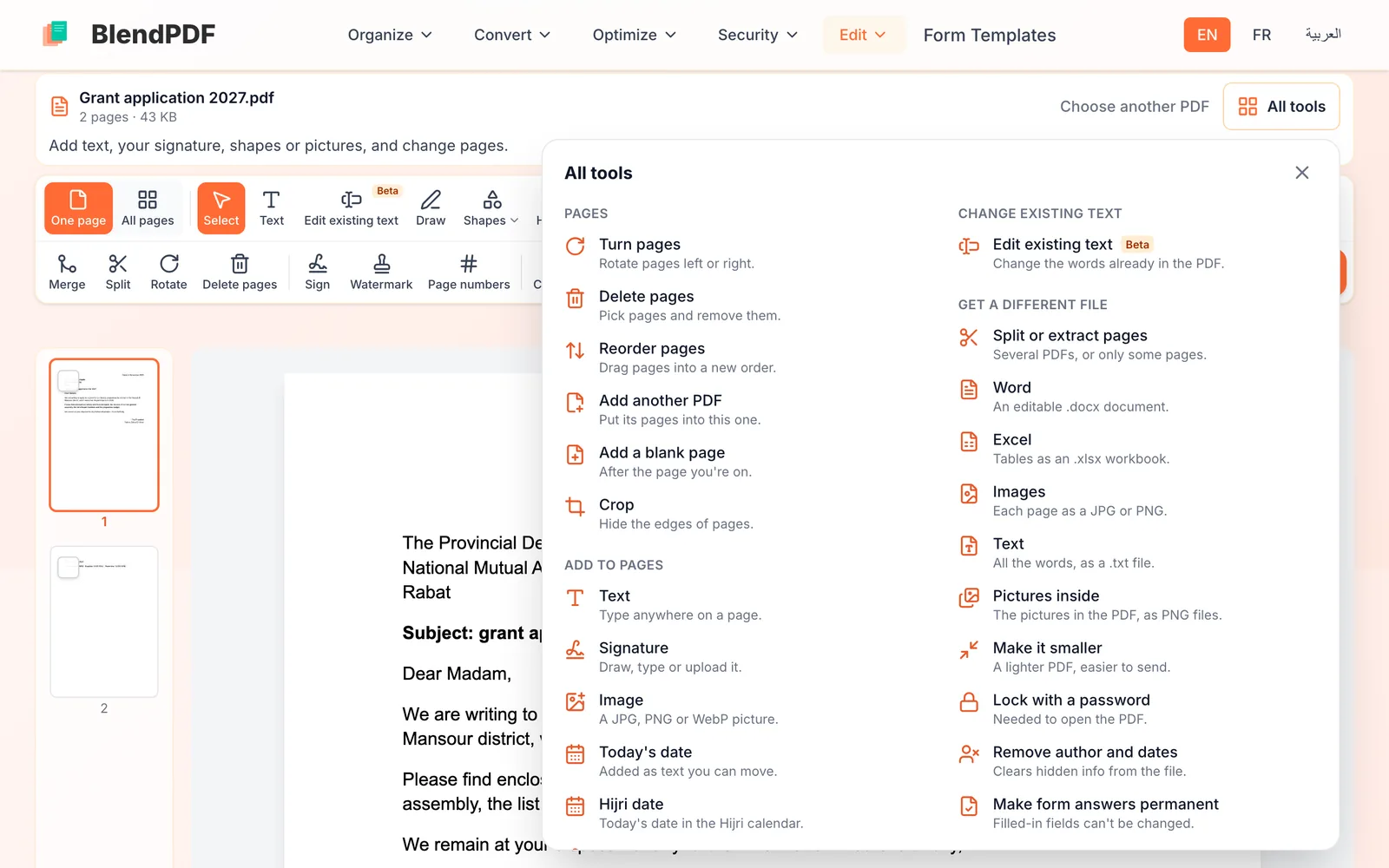
Not sure where something is? Open All tools
All tools lists everything BlendPDF can do with this file, grouped by what you want to do: change pages, add to pages, change the existing text, get a different file, or fix the file. Pick one and it opens right here, on the same file.
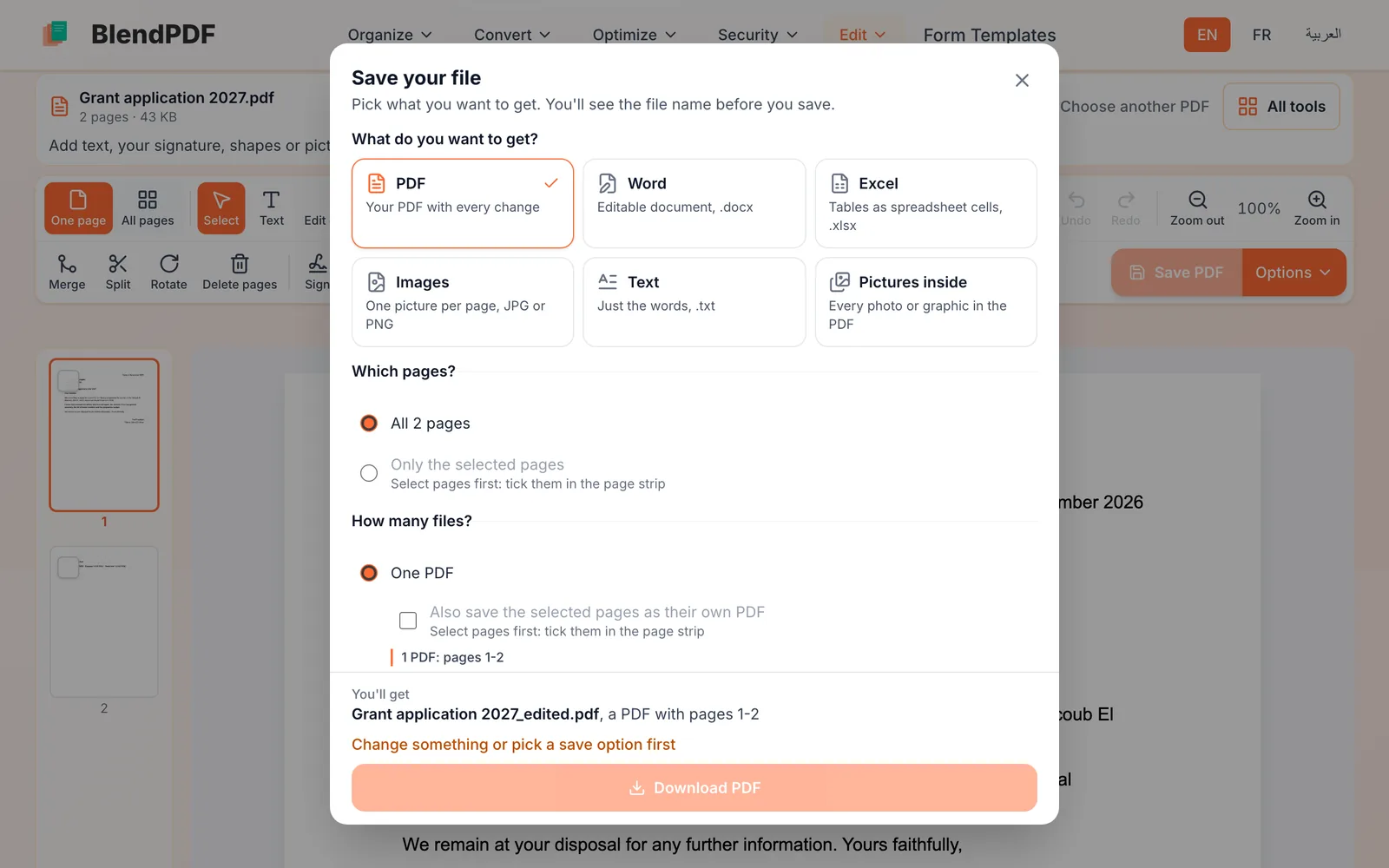
Save, and choose what you get
Save PDF gives you the PDF with every change. Options shows every choice: a Word, Excel, picture or text file instead, only some pages, one file per page, a smaller file, a password. The bottom of the window always says what you will get before you download it.
Good to know
- Changes wait until you save
- Undo and Redo work across every tool, and you can save as many times as you like while you keep working.
- Where your file goes
- Editing, signing and organizing pages happen in your browser: the file stays on your device. A few tools, such as compressing and reading scanned text (OCR), use our server, and those files are deleted within an hour.
- On a phone
- Everything works on a phone. The page is at the top, and the panel for the tool you picked opens under it.