How to add or change text in a PDF
2 min · Updated November 2026
To add words, choose Text, click where they go and type. To change a line that is already in the PDF, choose Edit existing text, click the line and type the new wording: BlendPDF takes the old line out and writes the new one in the closest font it has.
Edit a PDFSteps
Add text anywhere
Click Text, then click on the page where the words go, and type. Arabic and English both work, even in the same box. Drag the box to move it; its size and colour are in the small bar above it.
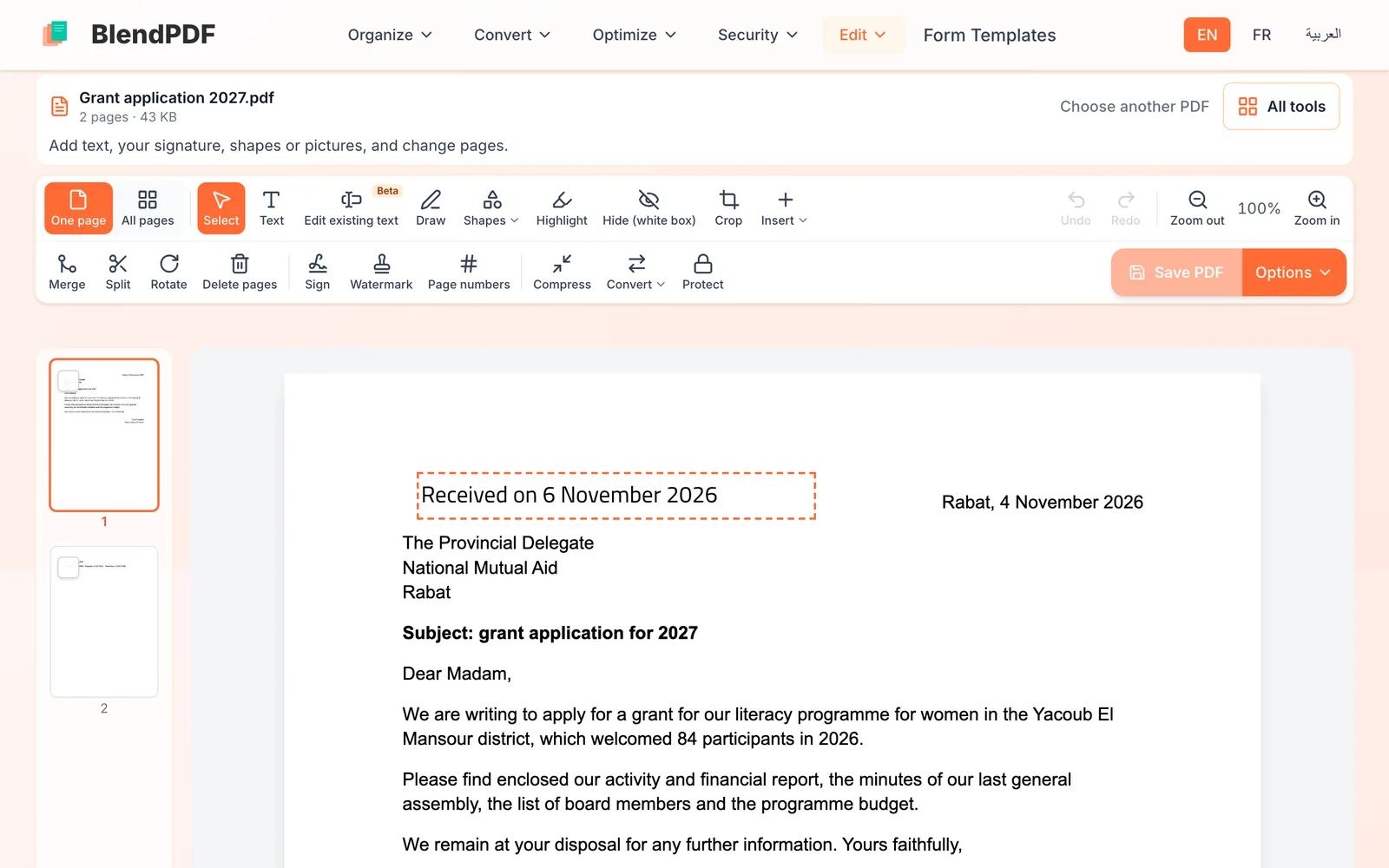
Change a line that is already there
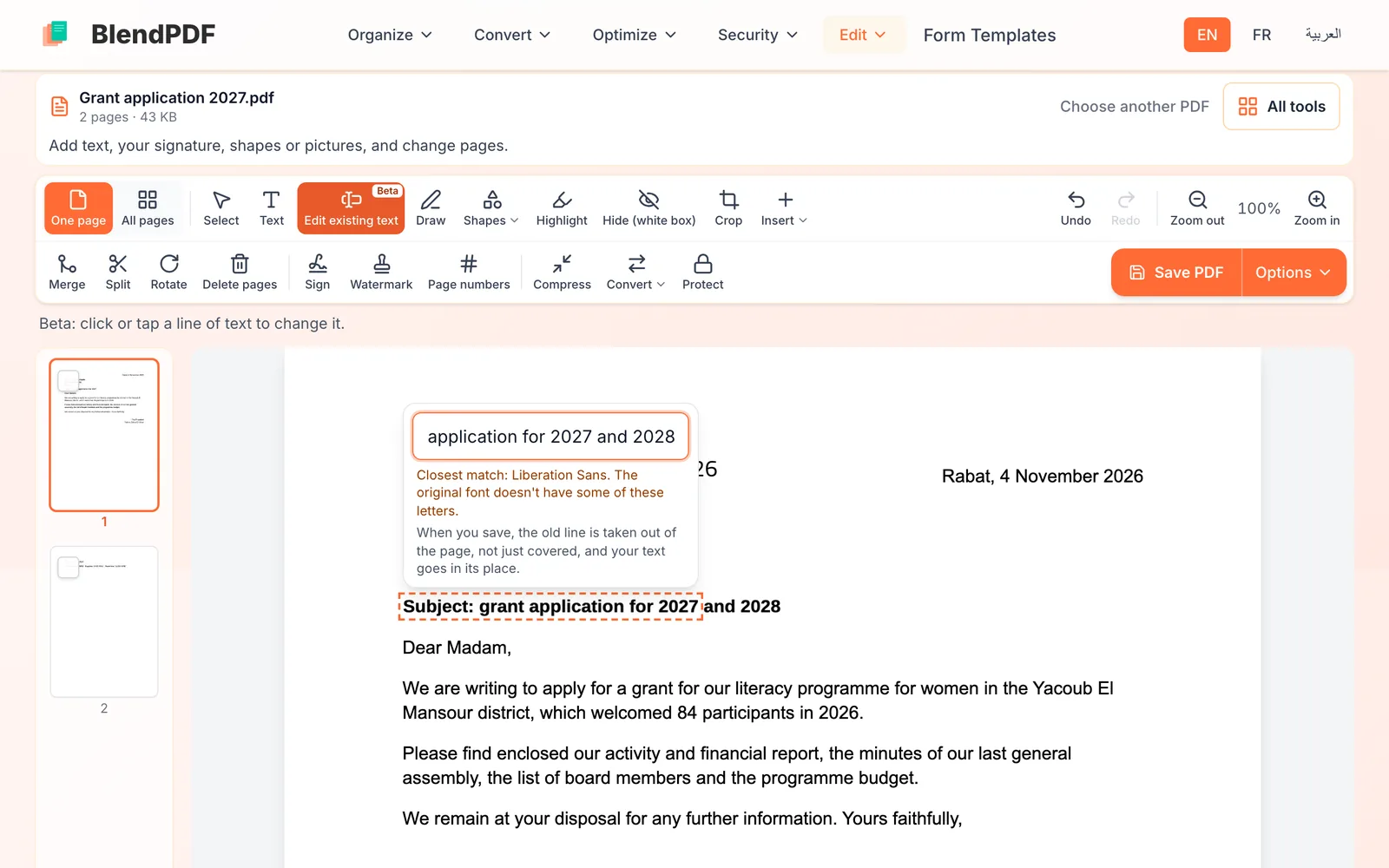
Click Edit existing text, then click the line to change. Type the new wording in the box that opens: the page shows the result as you type. When you save, the old line is taken out of the page, not just covered.
Save
Click Save PDF. You can keep editing and save again as often as you like.
Good to know
- A whole paragraph to rewrite
- Edit existing text changes one line at a time. For a bigger rewrite, turn the PDF into Word, edit it there, and save it as a PDF again.
- A scanned page
- Its words are part of a picture. Put Hide (white box) over the old words and Text on top, or make the scan searchable with OCR first.
- Fonts
- When the original font can’t write a letter you typed, BlendPDF uses the closest font it has and tells you.