How to add a letterhead to a PDF
2 min · Updated November 2026
Steps
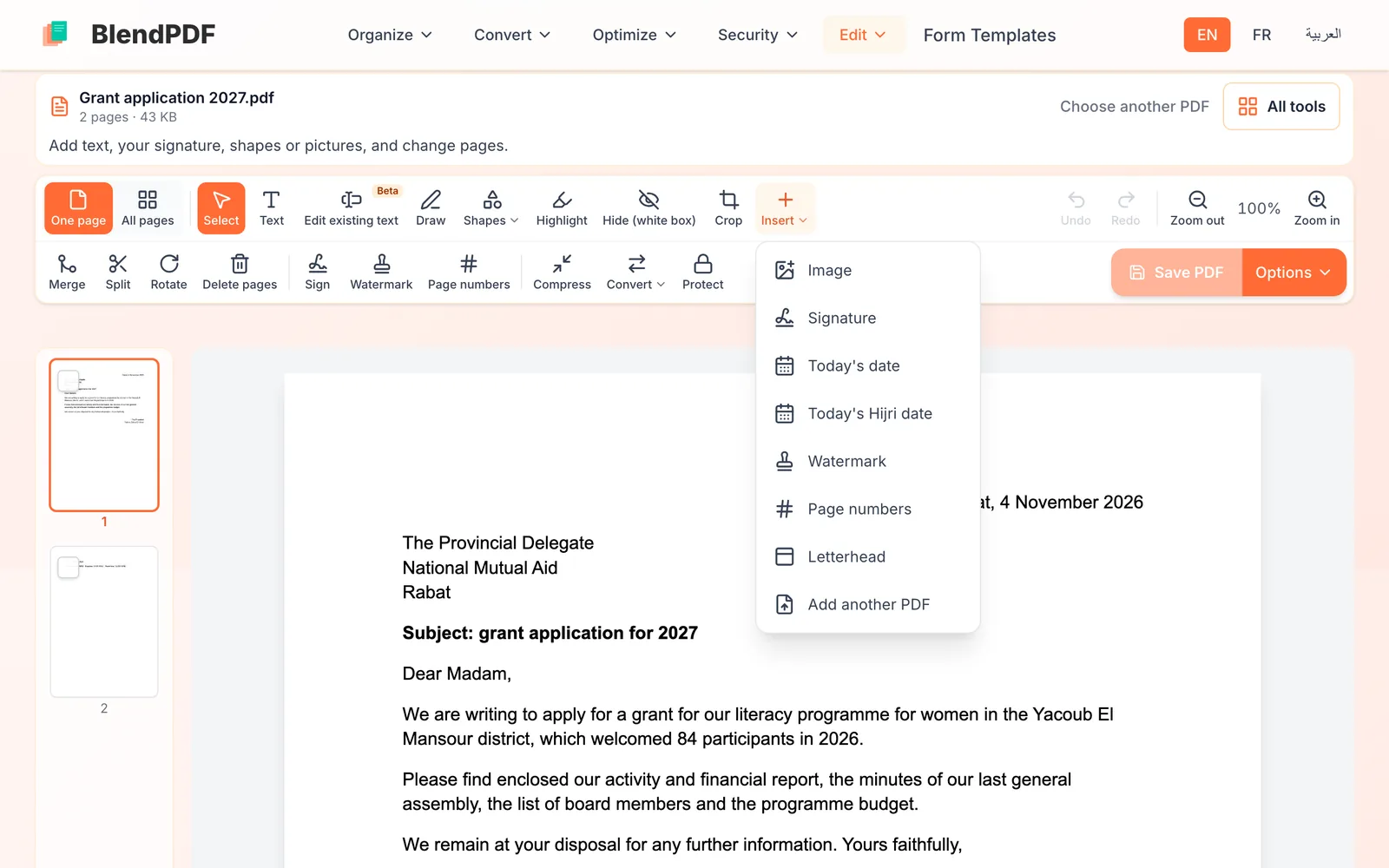
Choose Insert, then Letterhead
Open the letter or report on the Edit PDF page. In the toolbar, click Insert, then Letterhead. A panel opens beside the page, or under it on a phone.
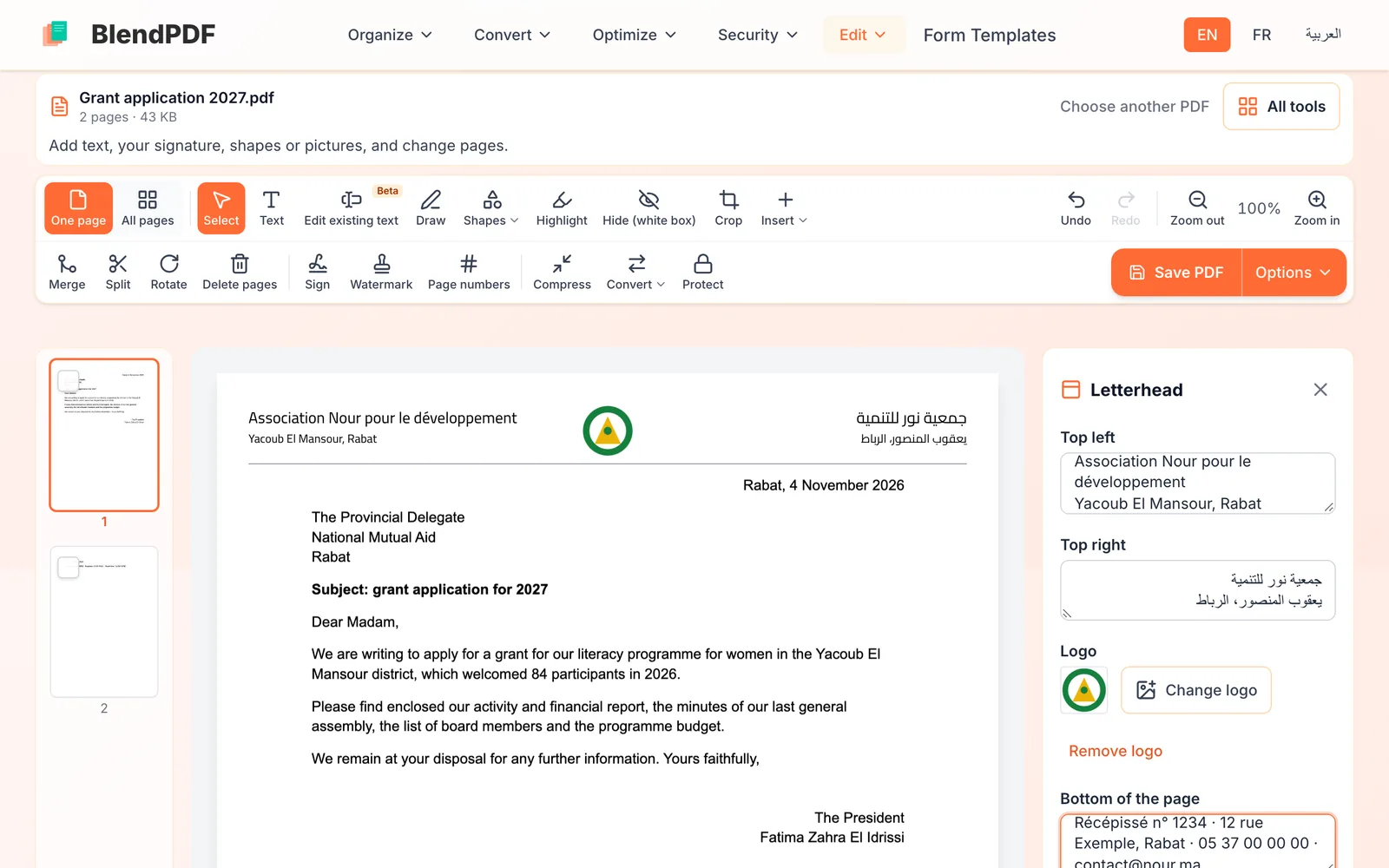
Fill in both sides, the logo and the bottom line
The first line of each side is your name, written a little larger; the lines under it are your details. Many letterheads have the name in French or English on the left and in Arabic on the right. Choose a logo puts your logo in the middle. Bottom of the page is for the address, phone, email or registration number.
Choose the pages, then save
Pick Every page or First page only, then click Save PDF. If a page has text where the letterhead goes, BlendPDF moves that page down a little, and makes it smaller only when there is no other way, so nothing is covered.
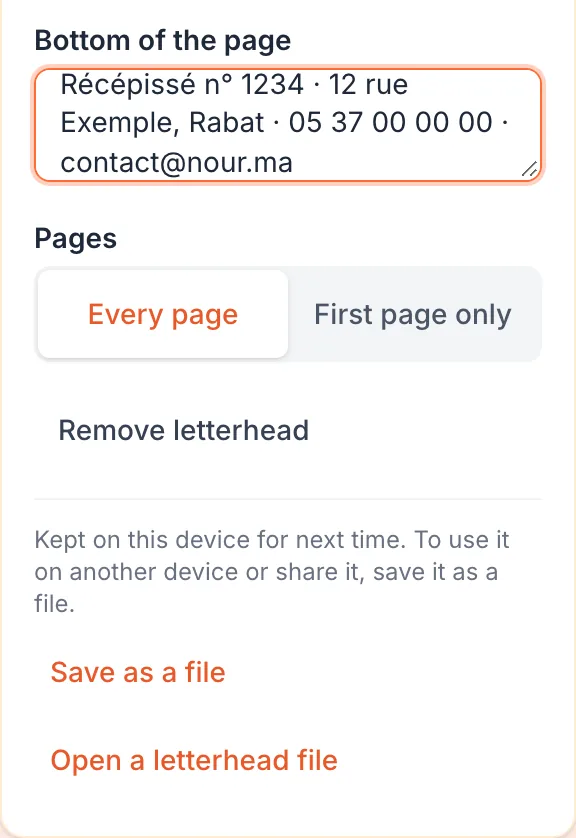
Use it again, or share it with your team
The letterhead stays on this device: the next time you choose Letterhead, it goes on by itself. To use it on another computer or give it to a colleague, click Save as a file and send them the file; they open it with Open a letterhead file.
Good to know
- Arabic and French on one letterhead
- Each side follows its own text direction, so Arabic reads right to left, and it stays real, searchable text in the saved PDF.
- A long name
- It goes onto a second line instead of getting tiny. Keep the bottom of the page to one line: it reads best.
- Turned or cropped pages
- On a page you turned or cropped in the editor, the letterhead is drawn in the top margin without moving the page.