How to make a PDF smaller than 2 MB (or any size limit)
1 min · Updated November 2026
Open the PDF on Compress PDF, choose Under a size limit, type the limit the form asks for (for example 2) and click Compress PDF. BlendPDF tries several settings and keeps the best looking one that fits. If nothing fits, it says how small it could get.
Compress a PDFSteps
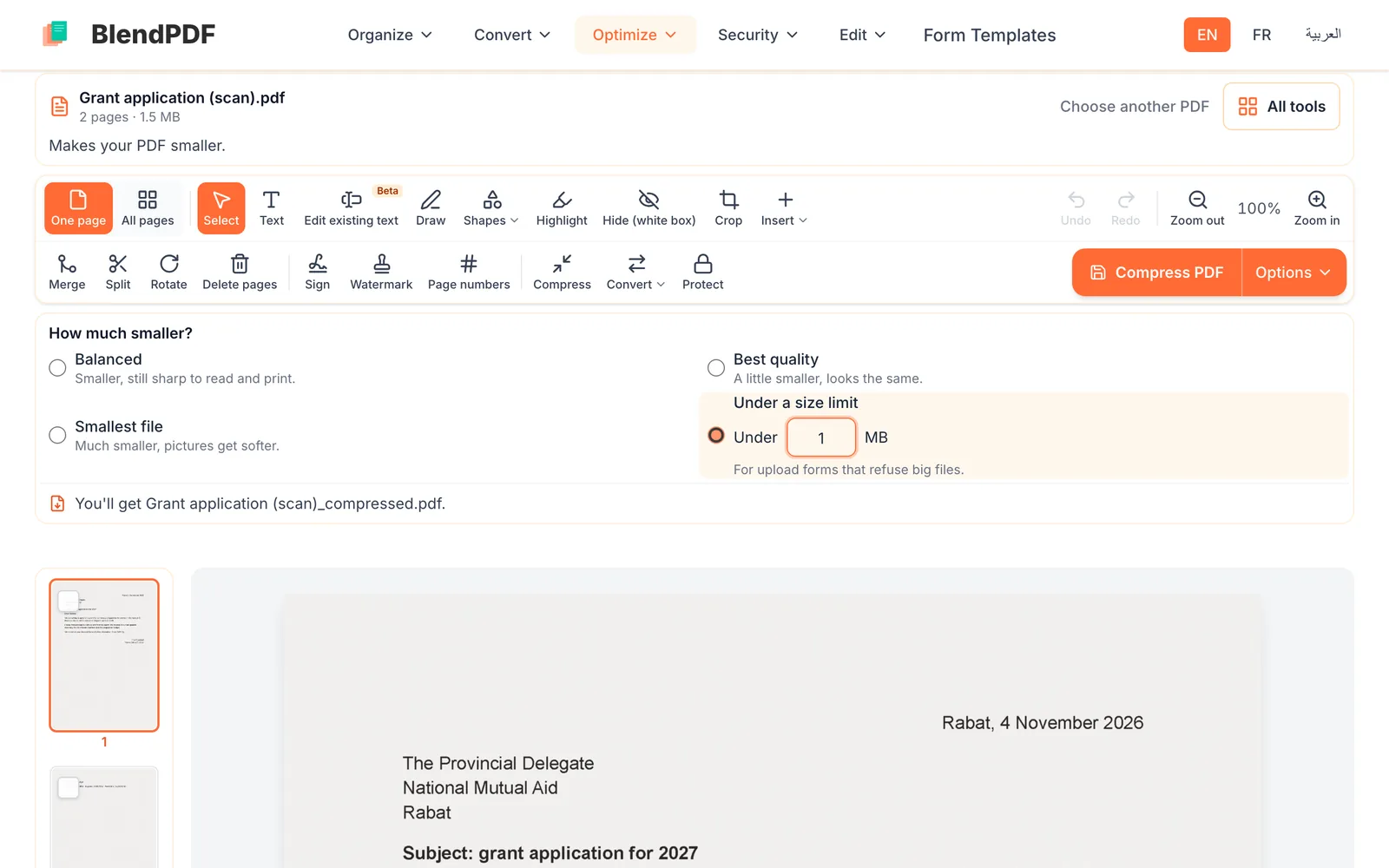
Choose Under a size limit and type the limit
On Compress PDF, pick Under a size limit and type the number of megabytes the form allows, for example 1 or 2. Decimals work too: 1.5.
Compress, then check the new size
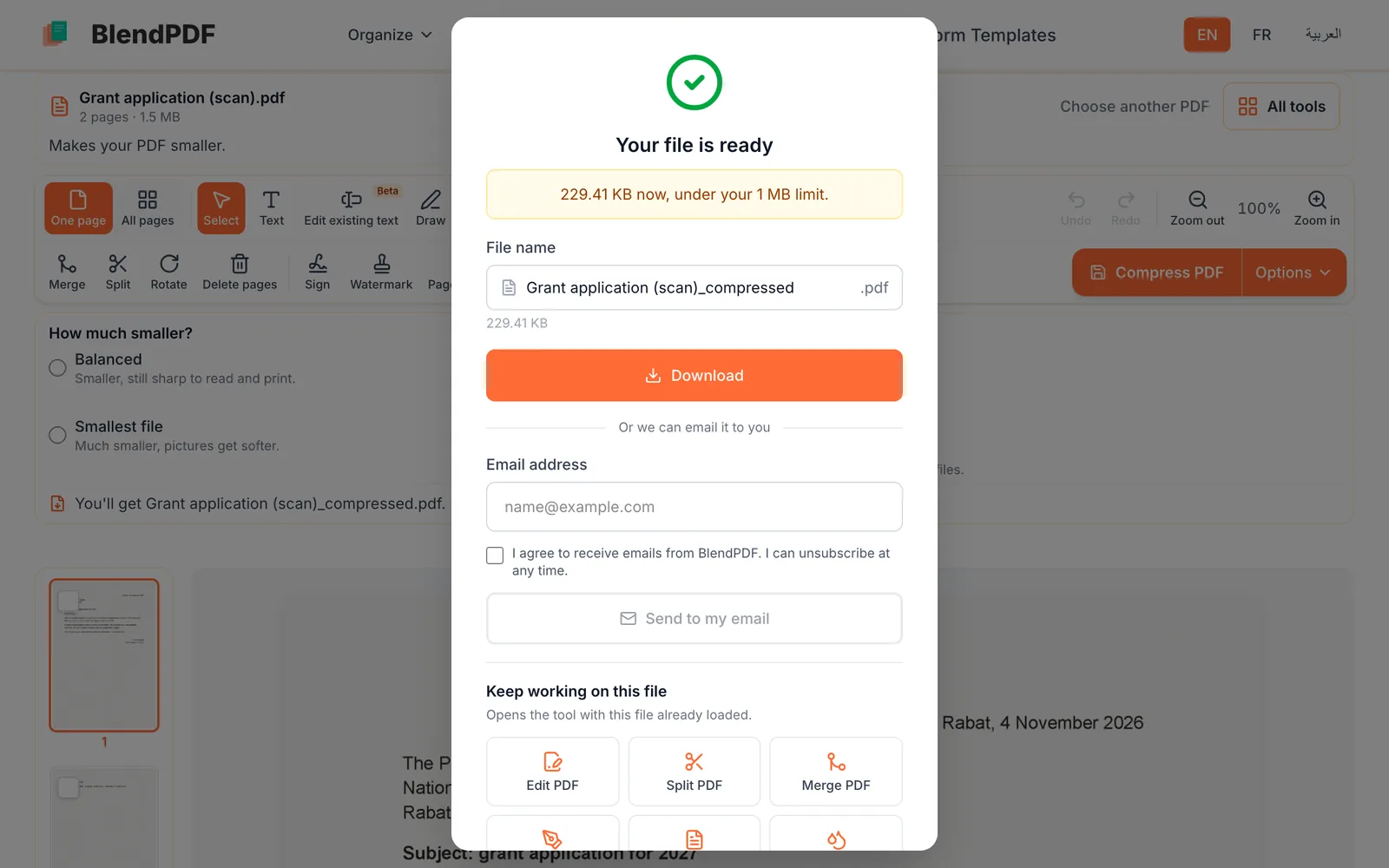
Click Compress PDF. A few seconds later you see the new size, for example "229.41 KB now, under your 1 MB limit". Download the file, send it by email, or keep working on it.
If it can’t get under the limit
Scans and photos get much smaller; files that are mostly text, much less. If even the smallest version is over the limit, BlendPDF says so and gives you that smallest version. Remove the pages you don’t need, or split the file into two parts and send them one by one.
Good to know
- Why 1 MB means 1,000,000 bytes here
- Upload forms count a megabyte in two different ways. BlendPDF uses the smaller one, so the file passes either way.
- Text stays sharp
- Only the pictures inside the PDF get lighter. Text stays text: sharp, and searchable.
- Already small enough
- If the file is already under the limit, BlendPDF leaves it exactly as it is.